4.4. Create Credentials Protection WAF Child Policy
Task 1 - Simulate credential attacks.
Open browser on jump server and go to
https://<Elastic IP>/user/loginEnter
bigmacfor UsernameEnter random password for Password. Repeat 5 consecutive times using different password to simulate brute force attack
Note
This is a common
brute forceattack. In this case the application allowed repeated attempts without lockout. Some applications will send “account locked” for a period of time, however user can continue to repeated attempts to elongate lockout period.Open new incognito browser on jump server and open developer tools. (View->Developer-Developer Tools)
Browse to
https://<Elastic IP>/user/loginand login asbigmacOnce successfully logged in, review log on Developer Tool. Highlight
login?return_url=and on right panel scroll to bottom of Form Data to view Username and Password.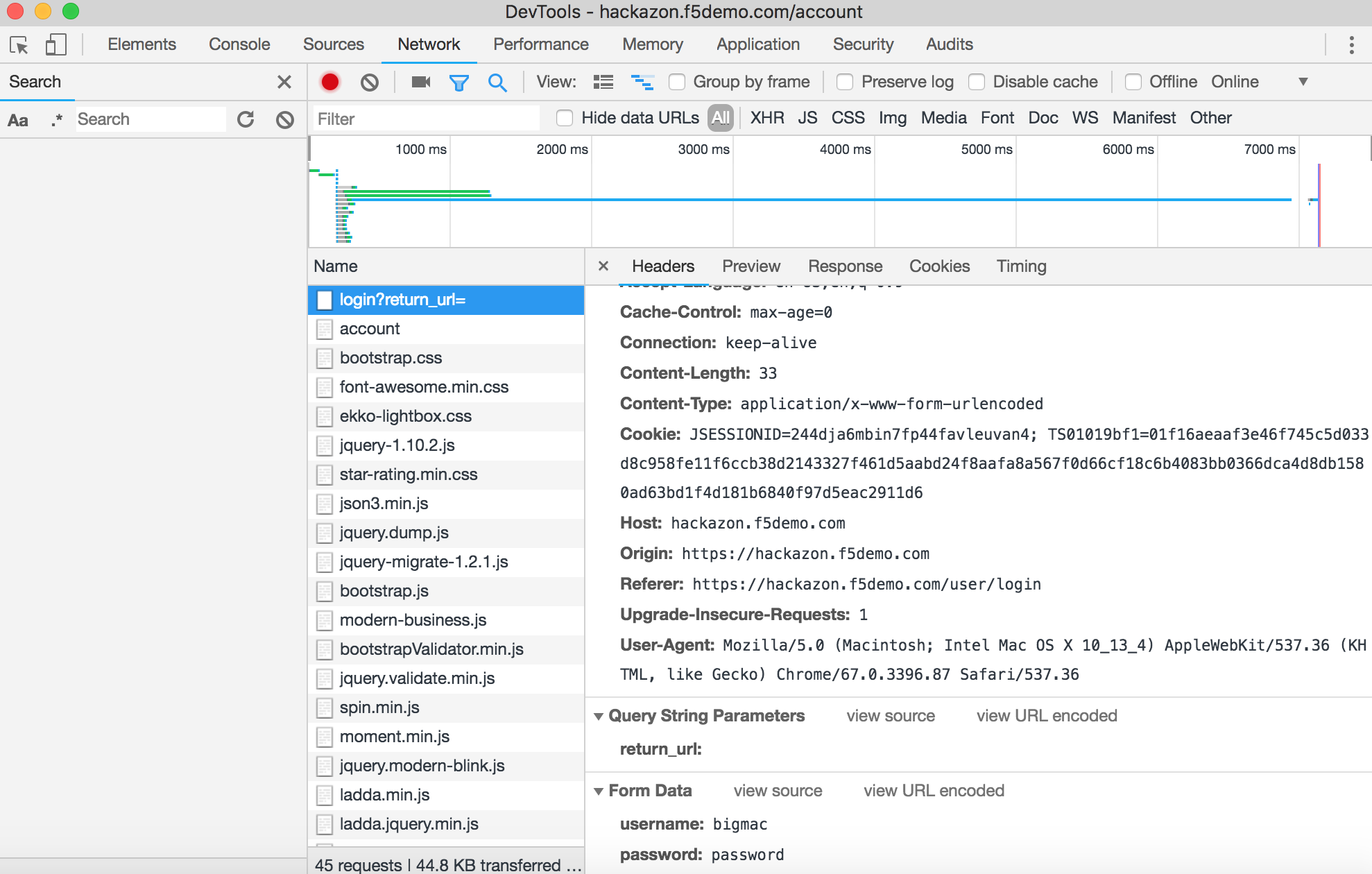
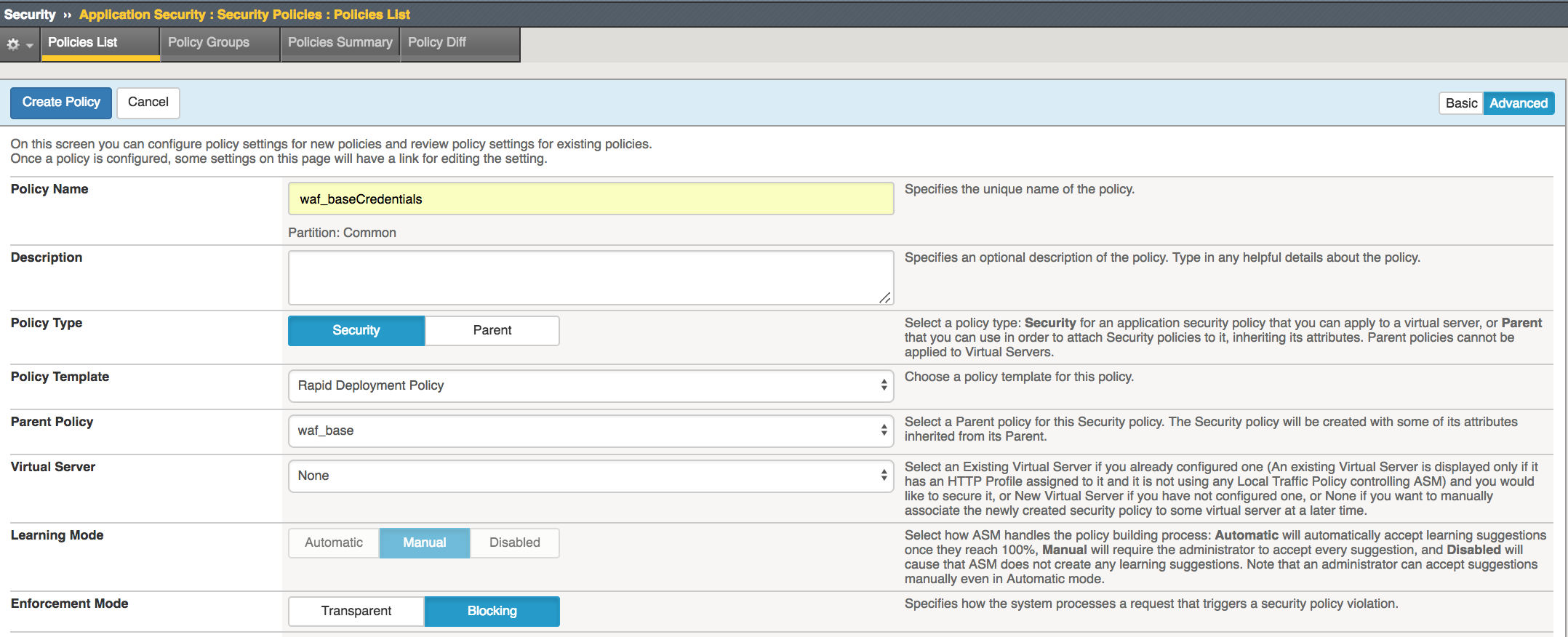
Task 2 - Create new waf policy to mitigate the vulnerabilities using info on table below:
| Policy Name | waf_baseCredentials |
| Policy Type | Security |
| Parent Policy | waf_base |
| Virtual Server | none |
| Enforcement Mode | Blocking |
Select the Security->Application Security->Security Policies->Policies List page
Click Create Policy
Task 3 - Configure Brute Force Protection
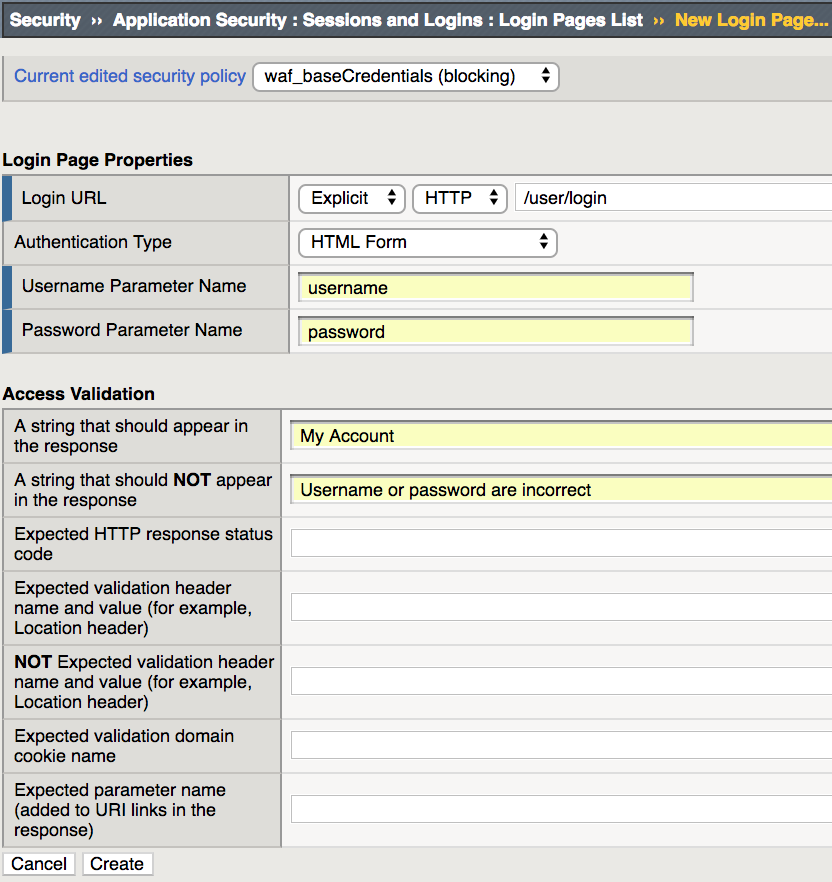
Select Security->Application Security->Sessions and Logins->Login Pages List page
Click Create
Open the Application Security->Anomaly Detection->Brute Force Attack Prevention page and click Create.
Select Security->Application Security->Anomaly Detection->Brute Force Attack Prevention then click Create
Change Login Page drop down box to
[HTTPS]/user/loginClick Apply Policy to commit changes

Task 4 - Configure Credential Encryption
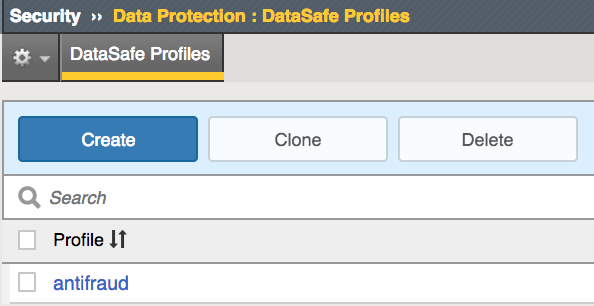
Select Security->Application Security->Data Protection->DataSafe Profiles
Click Create
Enter
protect_credentialsfor Profile Name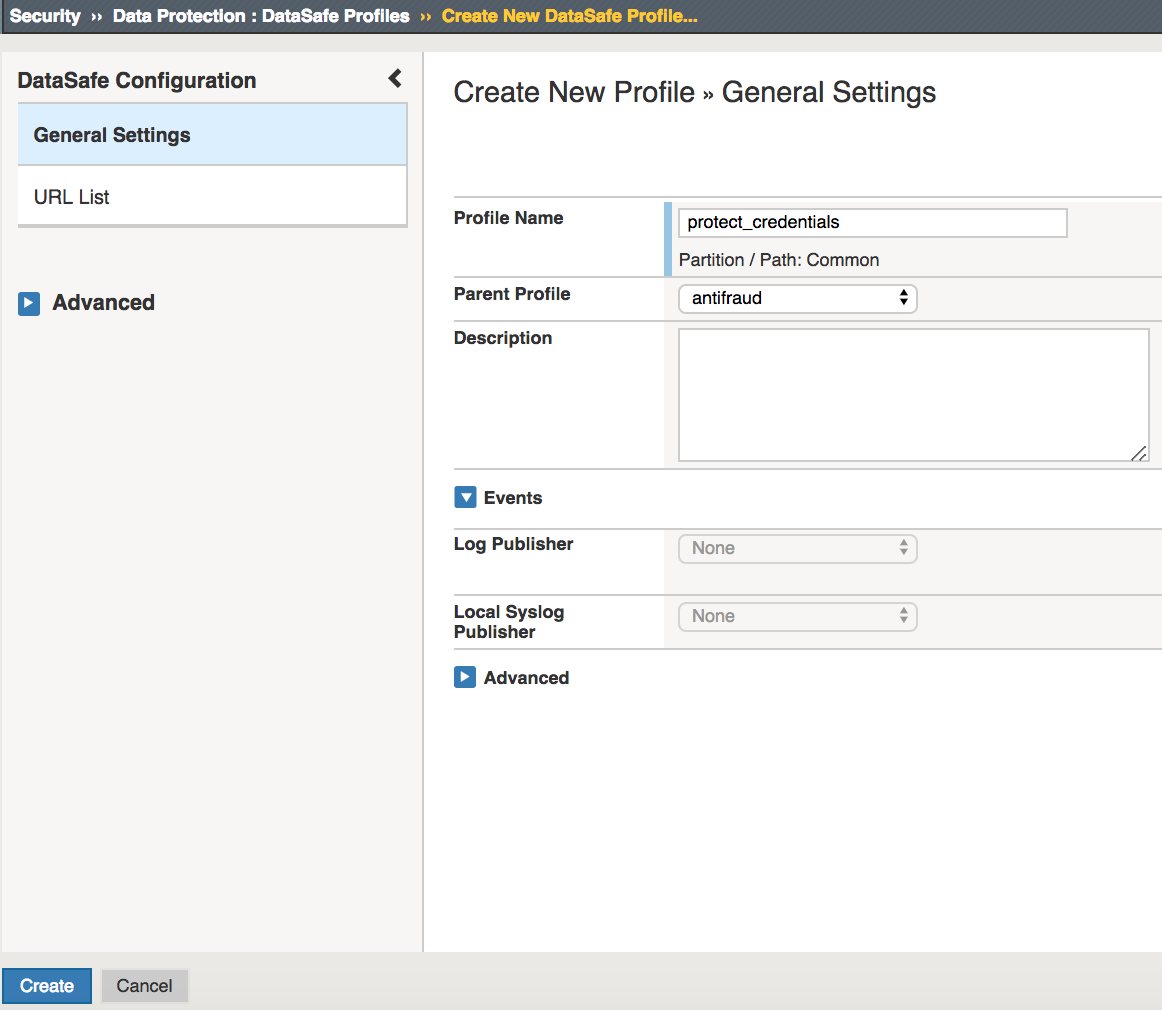
Select URL List and click Add
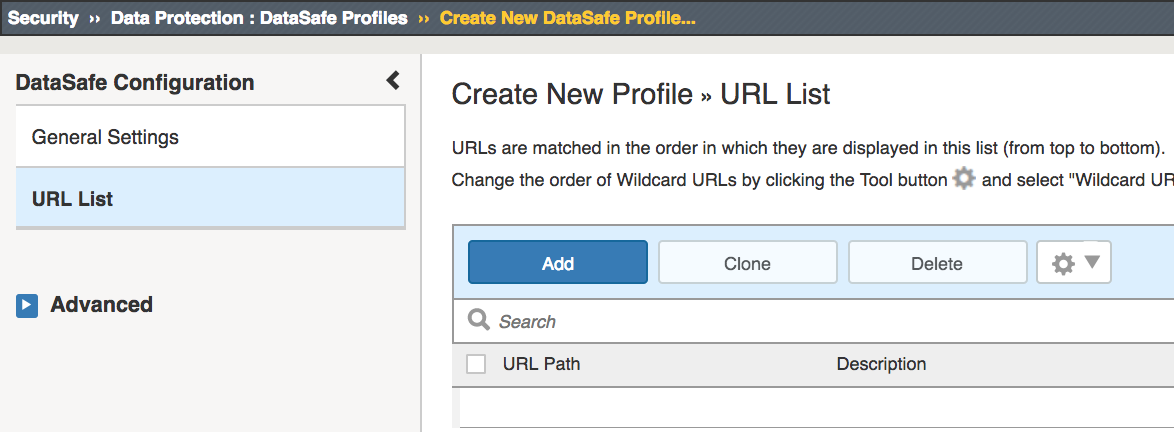
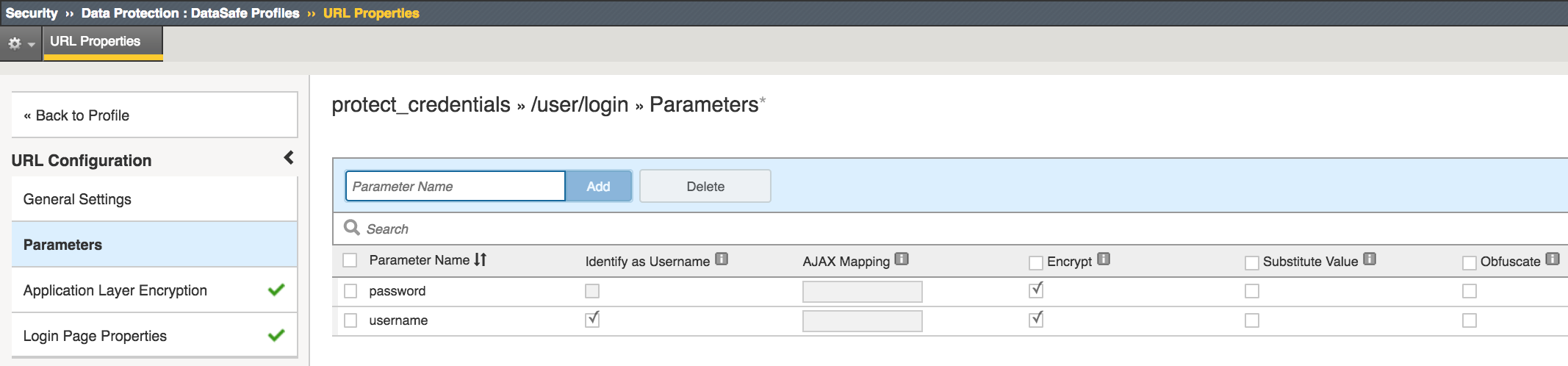
Select Parameters then enter
usernamein the Parameter Name and click AddCheck Identify as Username and Encrypt check boxes
Enter
passwordin the Parameter Name and click AddCheck Encrypt check box
Click Login Page Properties
Check Yes for URL is Login Page
Enter
My Accountfor A string should appearEnter
Username or password are incorrectfor A string that should NOT appear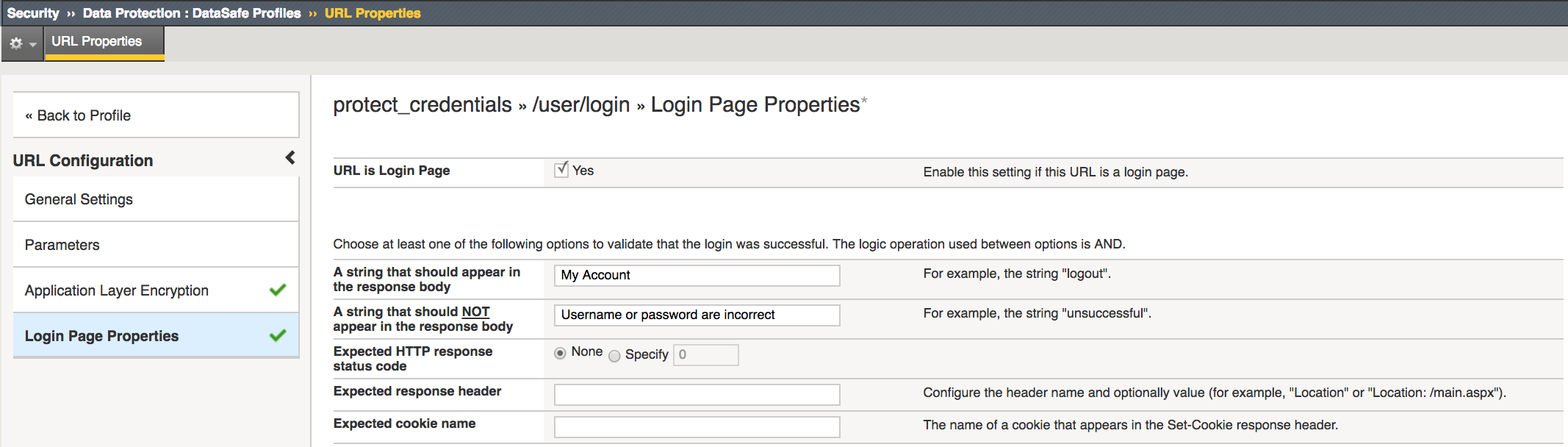
Click Save
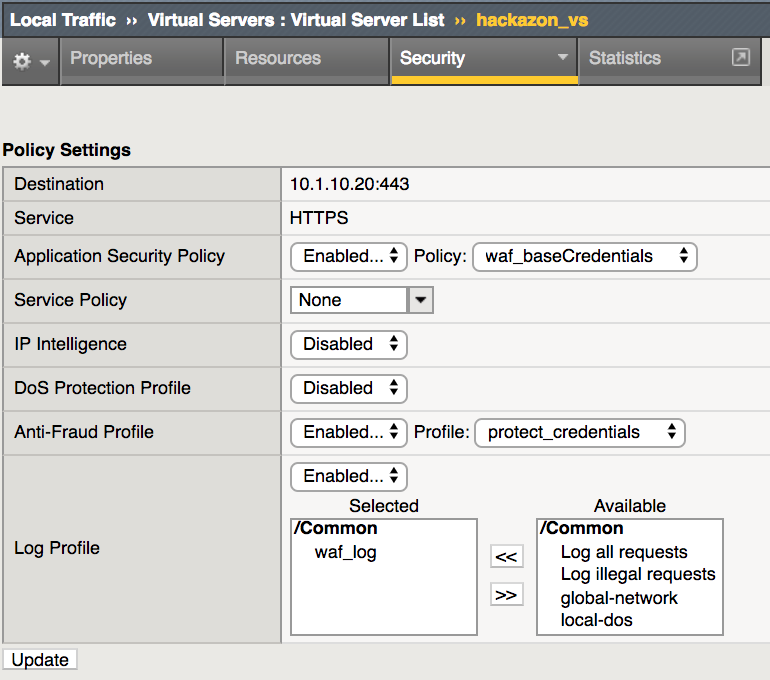
Task 5 - Assign policies to protect Hackazon App
Select Local Traffic->Virtual Servers->Virtual Servers List and click on
hackazon_vsSelect Security then Policy tab
Change Application Security Policy to
waf_baseCredentialsEnable Anti-Fraud Profile and select
protect_credentialsClick Update
Task 6 - Repeat simulated credential attacks
- Open browser on jump server and go to
https://<Elastic IP>/user/login - Enter
bigmacfor Username - Enter random password for Password. Repeat multiple times using different password to simulate brute force attack. You should receive a captcha challenge after 3 failed attempts.
- Enter code from captcha challenge then enter correct credentials to login in successfully.
- Open new incognito browser on jump server and open developer tools. (View->Developer-Developer Tools)
- Browse to
https://<Elastic IP>/user/loginand login asbigmac - Once successfully logged in, review log on Developer Tool. Highlight
login?return_url=and on right panel scroll to bottom of Form Data to view encrypted Username and Password